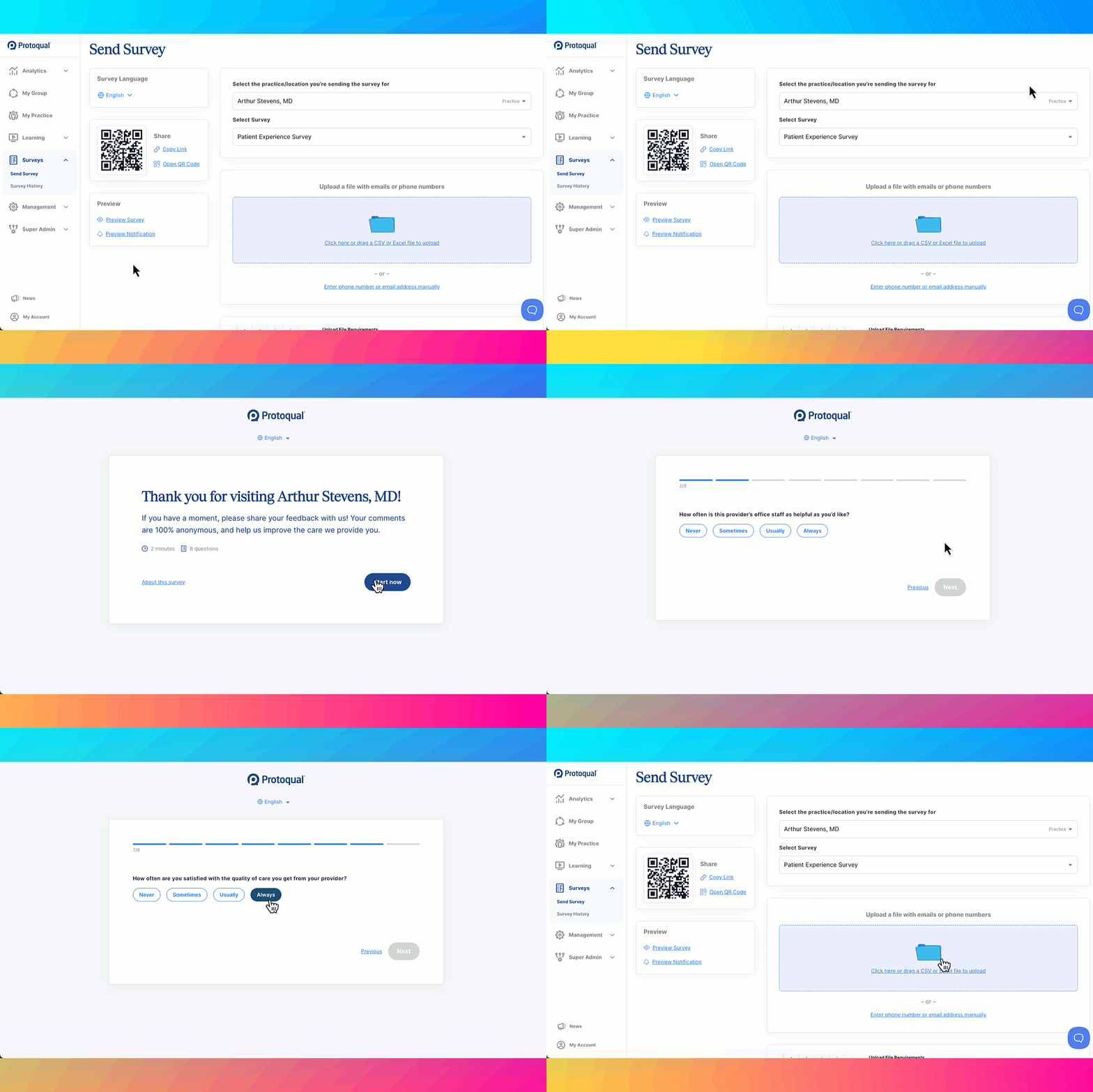
Sending Surveys in Protoqual
Surveys in Protoqual can be sent in two ways:
- Automatically, through integrations with an EHR or scheduling system
- Manually, from the Send Survey page
This article explains how to manually send surveys in Protoqual.
The Send Survey page adapts based on your organization’s configuration, so some options may only appear when multiple choices are available.
Getting Started
To send a survey manually:
- Open the Send Survey page in Protoqual.
- Confirm any required selections.
- Choose how you want to send the survey.
In many cases, the system will already select the appropriate options for you.
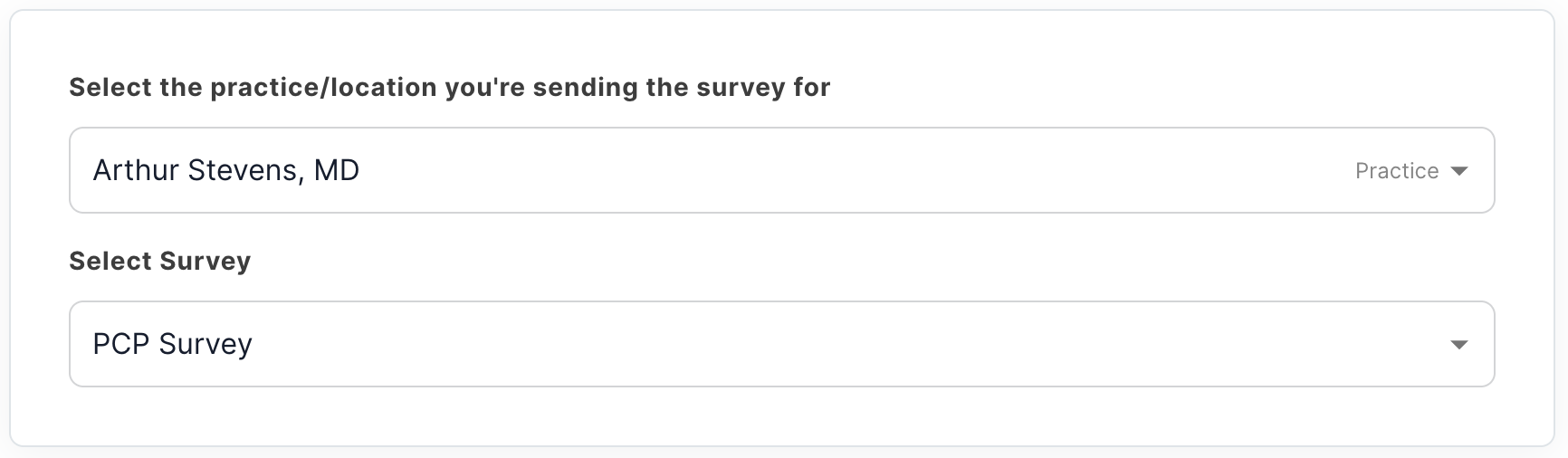
Confirm Practice and Location (If Applicable)
Some users may see options to select a practice or location before sending surveys.
- If you belong to one practice, it will already be selected.
- If there is only one location, you may not see a location selector.
- If multiple practices or locations are available, select the correct option before sending.
Survey responses will be associated with the selected practice and location.
Choose a Survey (If Multiple Are Available)
Most users will see one survey assigned to their practice, and it will already be selected.
If multiple surveys are available, you may be asked to choose which survey to send.
Some organizations also use Smart Surveys, where the system automatically selects the appropriate version of the survey based on the provider or visit type.
Select the Survey Language
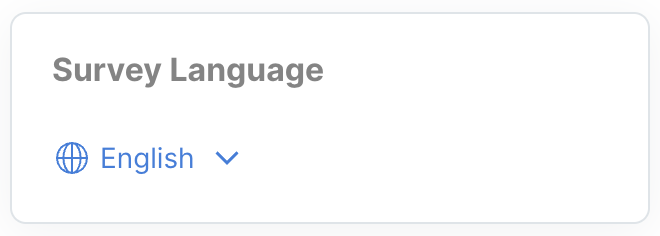
Before sending a survey, choose the language the patient should receive.
The selected language determines:
- The language of the survey questions
- The language of the notification message sent to the patient
If surveys are sent using a file upload, language can also be specified for each patient within the file.
Selecting the appropriate language helps ensure patients clearly understand the survey and improves response rates.
Choose How to Send the Survey
Protoqual provides several ways to send surveys depending on your workflow.
Send a Survey Directly
You can send a survey by entering a patient’s email address or phone number.
This option works well when:
- Sending to a single patient
- Sending to a small number of patients
- Sending surveys shortly after a visit
Share a Survey Link or QR Code
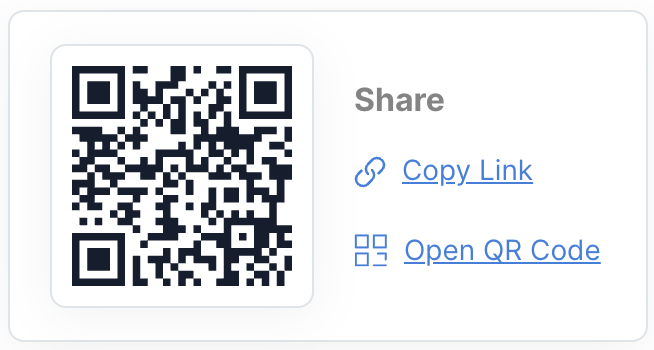
You can also share the survey using a link or QR code.
Patients can scan the QR code or open the link to complete the survey on their own device.
This method is commonly used for:
- Front desk signage
- Checkout counters
- Printed cards
- Waiting room displays
Send Surveys to Multiple Patients
If you need to send surveys to many patients at once, Protoqual allows you to upload a file containing patient contact information.
This method is often used when sending surveys to a list of patients after multiple visits.
See: Sending Surveys to Multiple Patients (Bulk Upload)
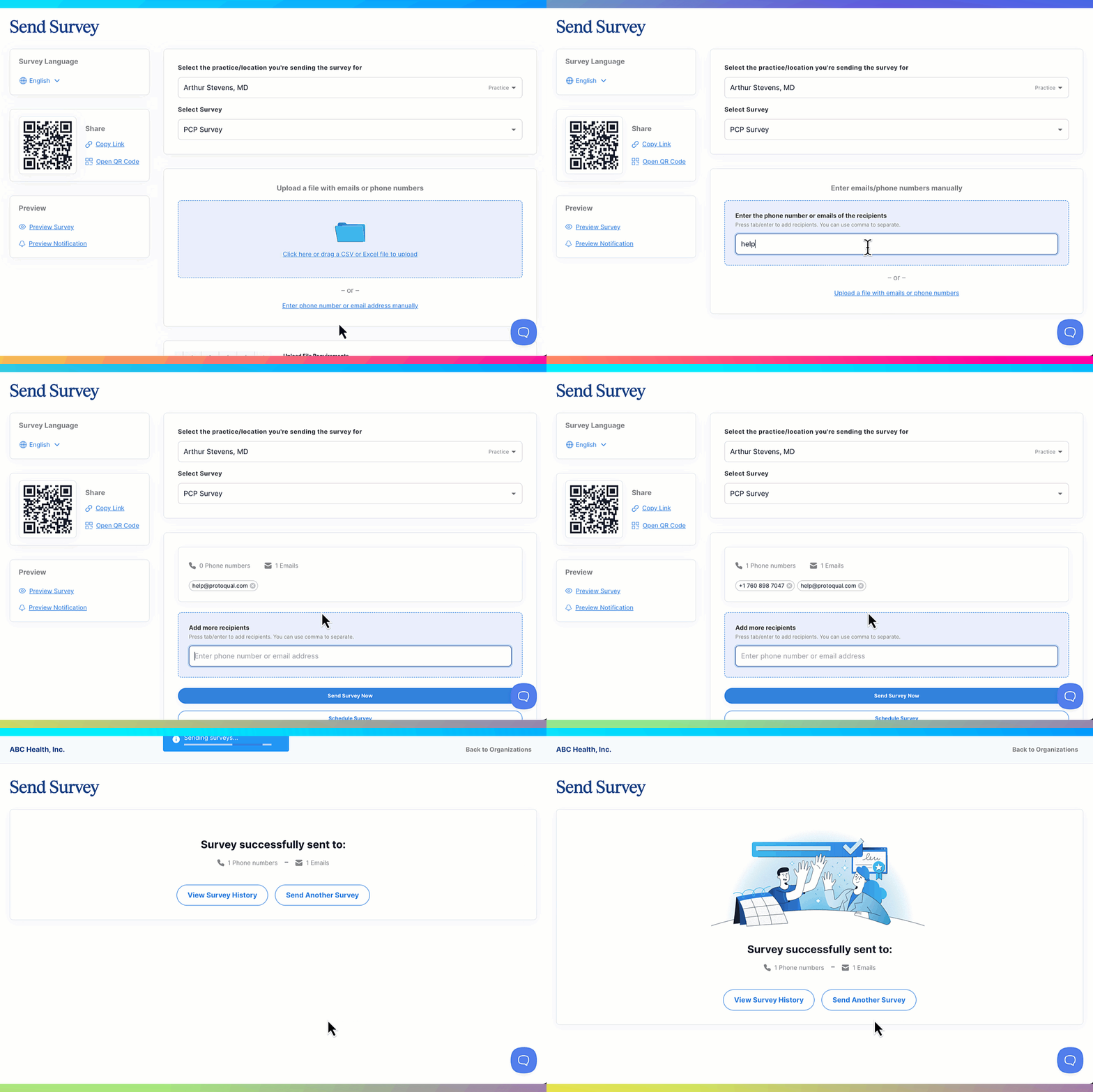
Preview Before Sending
Before sending surveys, you can preview:
- The survey questions
- The notification message patients will receive
Previewing helps confirm that the correct survey and language are selected.